You’re first On-Premise SharePoint App
January 16, 2013 Leave a comment
To build Apps with SharePoint 2013 it is not required that you will have SharePoint installed on the Dev. machine, SharePoint 2010 we are used to build solutions on the box that has SharePoint installed. If you have one box (Development) that runs every thing like AD DS with DNS integrated, SQL Server, Share Point 2013 and Visual Studio 2012. Before you do anything with the Apps environment has to be ready.
We have to configure the following things –
- Wild Card DNS record for App Domain: A wild card CNAME records that point to the host domain of the SharePoint Farm.
Create Wildcard Domain for the Apps to host and this will be called as app domain. The user account that performs this procedure has to be a local administrator.
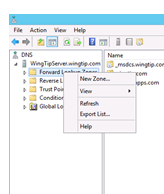
In the DNS Manager, right click on Forward Lookup Zones and the click New Zone
In the New Zone Wizard, select the Primary Zone as Zone Type and click next. Leave the default Replication Scope and click next.


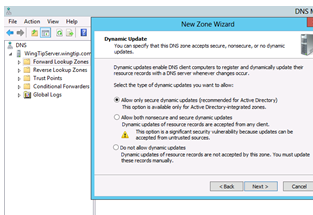
In the Zone Name page, type the Zone Name (in this example wingtipapps.com, you can use your app domain) and click next. On Dynamic update page leave the default and click next.
 |
 |
Completing the New Zone Wizard page, review and Finish

Now to create a wildcard CNAME record, go to Forward Look-up zone. Make sure the user is a local administrator.
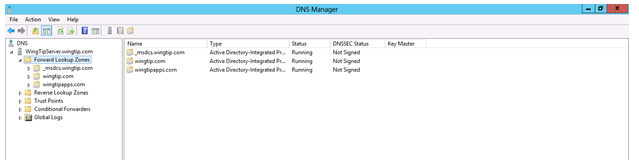
Click on Wingtipapps.com – By default it will create a SOA and Name Server record
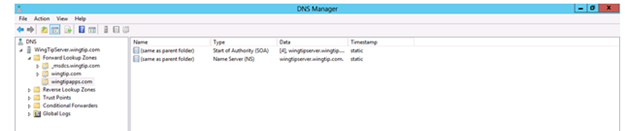
Right Click the new app domain Wingtipapps.com and click New Alias(CNAME) record, Type * in the Alias as
we are creating a Wild Card domain, click Browse and navigate to the Forward Lookup Zone for the domain that hosts
the SharePoint sites to add the Fully Qualified Domain
 |
 |
Click wingtip.com (In my case that is primary domain that hosts the SharePoint sites)
Select the record with (in this example 192.168.150.1) as that was the IP of the SharePoint host Domain.

You will screen looks like this and Click Ok.

With this we are completed on adding the DNS record

Note: if your SharePoint sites are using SSL or if you use any apps that use data external to the SharePoint sites you should configure wildcard SSL Certificate
- Service Application: The Subscription Settings and the App Management service applications are required. These services support apps in the environment by storing the required data for the apps to run.
Each App will have a unique URL, we will set the App Domain (Wild Card DNS record) and prefix to the Subscription setting service.
Ex: prefix–Apphash.wingtipApps.com/sites/AppDev/appname
App Management can be provisioned through Central Administration – Manage Service Application. Verify the user account that you are using is a Farm Administrator.
 |
On the other hand Subscription Management Subscription can be provisioned only through PowerShell$apppool = Get-SPServiceApplicationPool “Default SharePoint Service App Pool”Note: “Default SharePoint Service App Pool” is your SharePoint Service App Pool and already created.$sa = New-SPSubscriptionSettingsServiceApplication -ApplicationPool $appPool -Name “Subscription Settings” -DatabaseName “Subscription_Settings_DB”New-SPSubscriptionSettingsServiceApplicationProxy -ServiceApplication $saGet-SPServiceInstance | where{$_.TypeName -eq “Microsoft SharePoint Foundation Subscription Settings Service”} | Start-SPServiceInstance |
Once After Provisioning these services make sure that you have the services related to the above Service Applications are running, If not run them. Services are “App Management Service” & “Microsoft SharePoint Foundation Subscription Setting Service”. Go to Central Admin – System Settings – Manage Services on the Server
For the Subscription Setting service you have to set the Appdomain (wingtipapps.com) and the prefix to have the apps. We can set in two ways either through PowerShell or through Central Administration
Through Central Administration – Go to Apps and click on “Configure App URLs”. In the App domain box type the isolated that you created above for hosting apps. In App prefix type the name that you want to use for URL prefix for apps, then click Ok.
 |
 |
We can use the PowerShell:
Set-spappdomain -appdomain “wingtipapps.com”
Set-spappSiteSubscriptionName -Name “app”
- Web Application
If you are using Web Applications with host headers and has path-named site collections you have to make sure that you create a Web Application without a host header at Port 80 and recommended to have a blank root site collection. Otherwise you will have 404 errors. This will help the apps to route to correct Web Application, as host headers won’t match the app domain.
Go to Central Administration –

In this Web Application – I have created a blank Site Collection – “Home”

App Catalog – if you are providing apps to the site owners to install, you have to configure the App catalog for containing your apps. App catalogs are Web Application based, so you can have one or more for each Web Application. So you have to decide which Web Application needed an App catalog. Again the App Catalog is a site inside a web

If you don’t have any associated App Catalog’s for the selected Web Application you will start by creating new one

It was like creating any other Site Collection, provide the required information
This is how your default App Catalog site looks like

- App Configuration
To build the App, make sure that you not logged in as Administrator. If you log-in as Administration and want to run the Apps you will get errors like following

Development Site –
In SharePoint 2013 we have a new template called Developer Site to help on deploying the apps while developing/debugging – create a Site Collection for you to debug/deploy for testing the Apps
Create an AppsDev Site Collection –
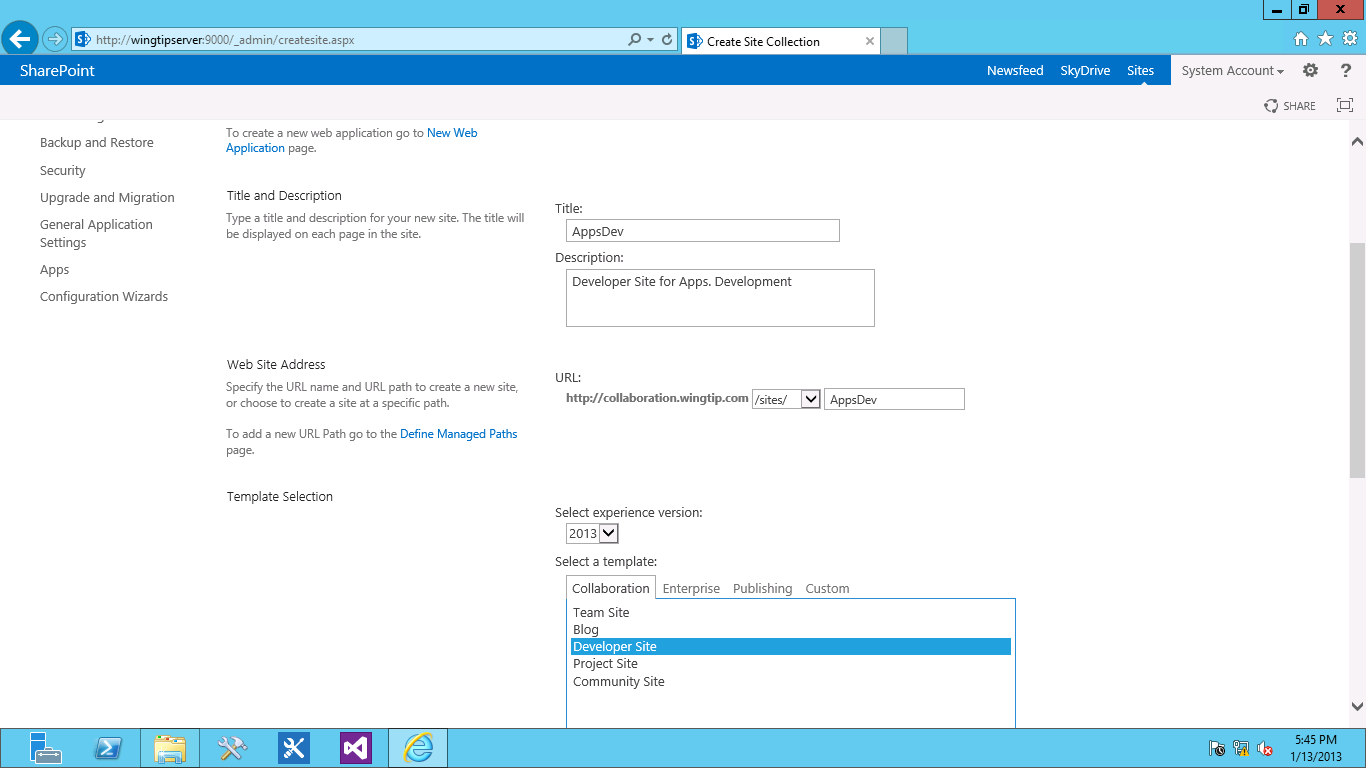
After the Site Collection is created this is how it will look like

Now we are ready to build our first App – Again make sure that you are not logged in as Administrator and you are a Site Collection Administration for the Developer site that you build
Run the Visual Studio 2012 editor as Administrator, go to File – New Project and select Office SharePoint – Apps and Pick “Apps for SharePoint 2013”. Type SPHelloApp and click ok, this will be the name of the App.
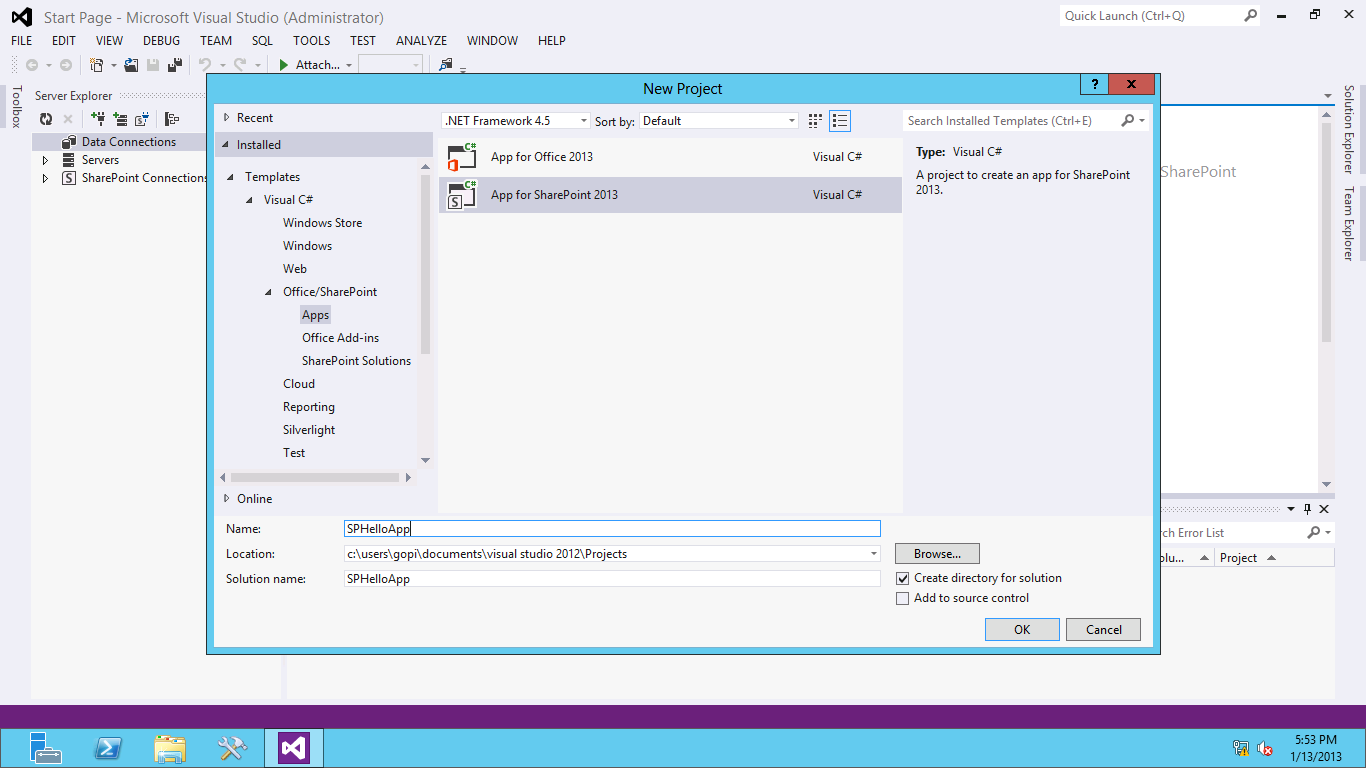
You will be prompted with this screen, make sure that you will update the URL of the Developer Site Collection that you created.
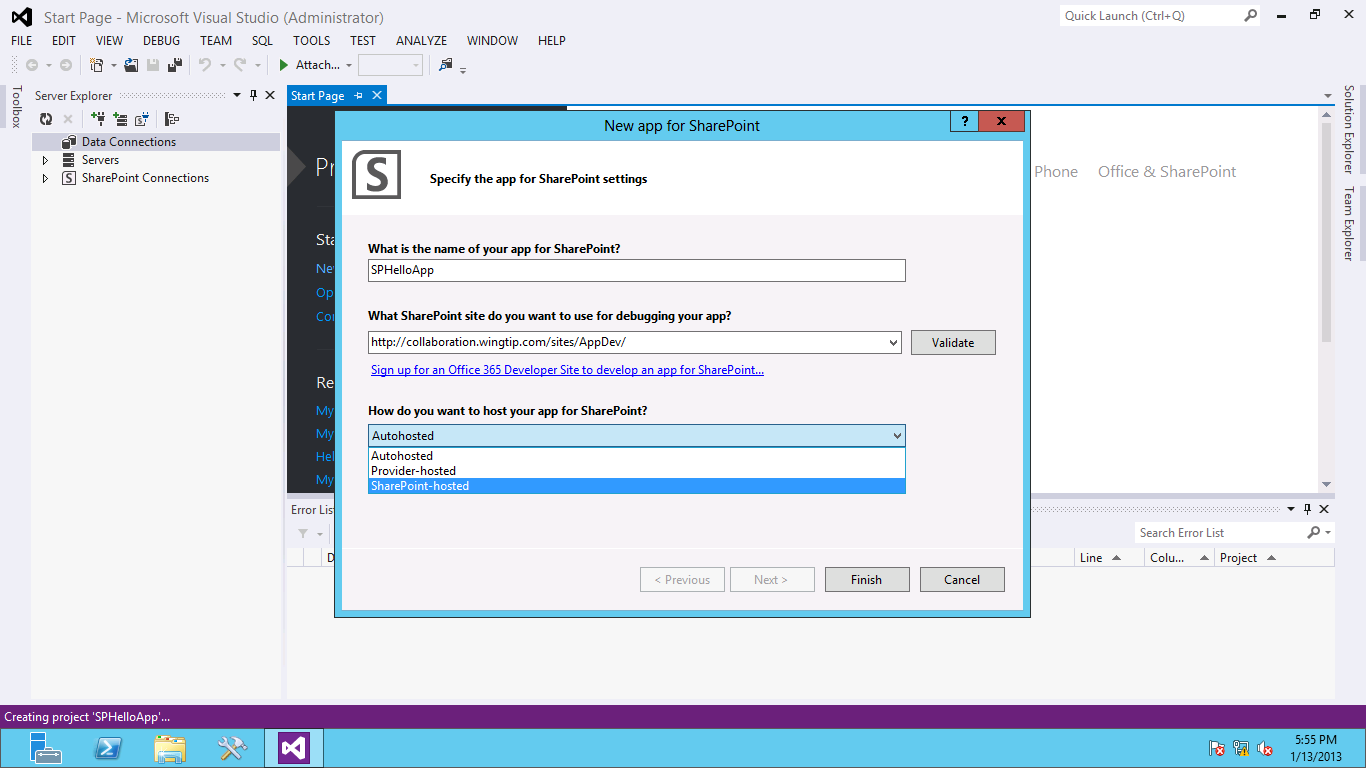
There are three types of Apps and they are varied based on where they hosted. Here we are going to build the “SharePoint Hosted” app. Select that one and click Finish.
Your first App is created –

As we are trying to build a simple one –
In the Solution Explorer – go to the Pages/Default.aspx
Add the Code in the PlaceHolderMain content Place holder

Go to the Scripts/App.js and write the function SPAPPHello
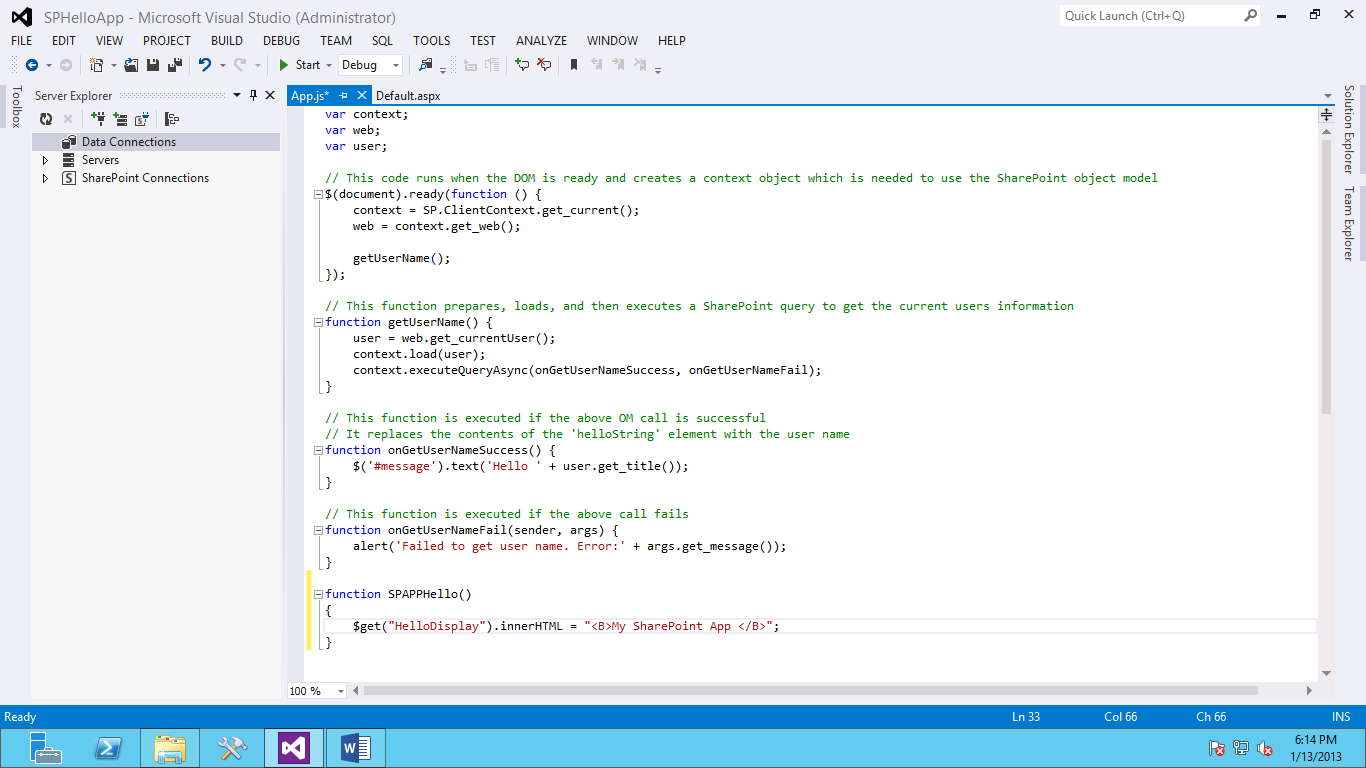
Run the App in Debug Mode, you will see a screen like this

If you click on “Click Me” –

 About gkondameda
 Gopi Kondameda