End to end configuration of sensitivity labels to protect content in Microsoft Teams, Office 365 groups, and SharePoint sites.

As of now this feature is in Public Preview!

You can create sensitivity labels in the compliance center and these labels can be applied for the following containers: Microsoft Teams sites, Office 365 groups, and SharePoint sites.  As of now we have the following label settings to help protect the content in those containers:

  • Privacy (public or private) of Office 365 group-connected teams sites
  • External users access
  • Access from unmanaged devices

When you apply this label to a supported container, the label automatically applies the configured options to the connected site or group.

Important thing to note  – The Content in those containers do not inherit the labels for settings such as the label name, visual markings, or encryption. So that users can label their documents in SharePoint sites or team sites only manually with E3 License.

To create Sensitivity label in the Compliance Center –
Protection Full

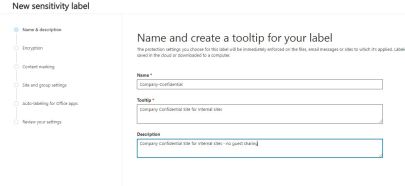
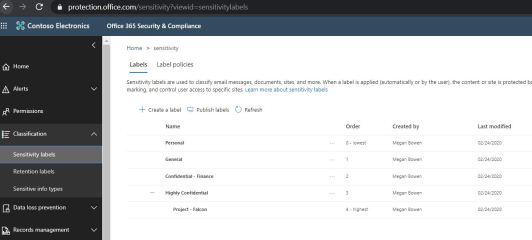
Here we created two Sensitivity labels  one for private and the other for public sites with guest sharing on, on creation of these go with the default options on all except “Site and Group Settings”

Create New Sensitivity Label

New Sensitivity Labels

Site and group settings option for company – restriction label with private
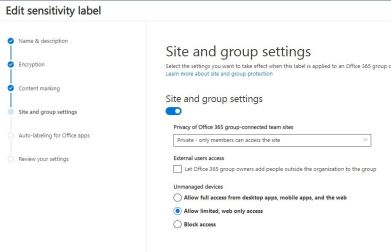
Sensitivity Label for Private

Site and group settings option for company – public label with public and guest sharing
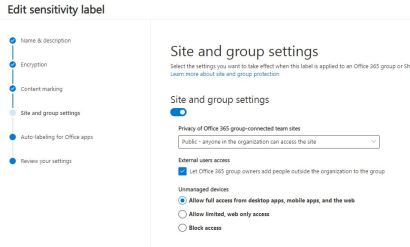
Sensitivity Label for Public

We have to publish these labels through label policies –

Always a good practice to publish label to one or two users and test before publishing for the large groups. Also deleting or modifying the label while it’s associated with sensitivity policies can result in team creation failures across the tenant. Therefore, before you delete or modify a label, you must first disassociate the label from its associated policies.
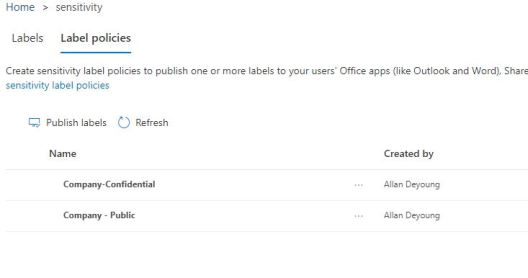
Label Polcies Published

Now go to Azure (portal.azure.com)  and try creating an Office 365 group no surprise we don’t see the option to pick a sensitivity label.
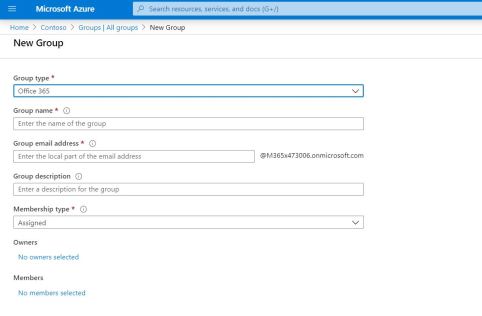
Create New Office 365 Group in Azure Before

So we need to enable sensitivity labels through PowerShell (Link),  as it required enabling the feature.  If no group settings have been created for this Azure AD organization you get the below error, so you must first create the settings.
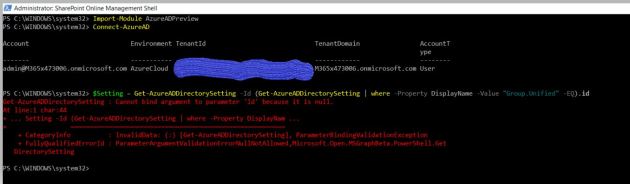
Settings Error

Follow the steps in Azure Active Directory cmdlets for configuring group settings to create group settings for this Azure AD organization.

Important that you uninstall any previous version of AzureADPreview and install the latest version of Azure AD Preview to have this work.

These steps create settings at directory level, which can apply to all Office 365 groups in the directory.  Again to configure Office 365 group settings for your directory, you use the template named “Group.Unified”.

So  as an example we can add usage guideline URL, for that you need to get the SettingsTemplate object that defines the usage guideline URL value; that is, the Group.Unified template.
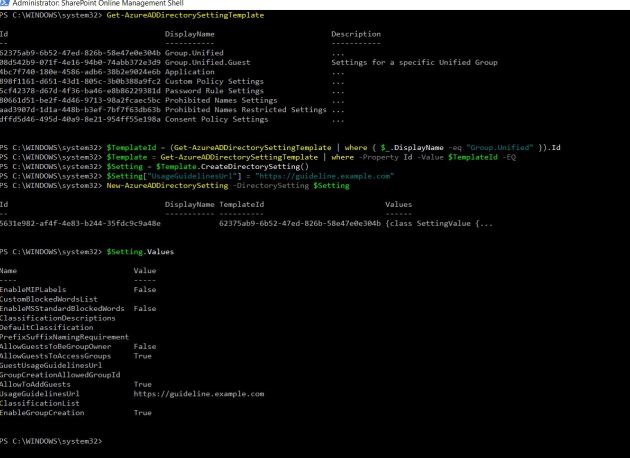
Azure AD Directory Settings 1

As our objective is to just create group settings for this Azure AD Organization and not to use the UsageGuideline Url, so we are going to reset it to empty. To update the empty value for UsageGuideLinesUrl in the setting template, read the current settings from Azure AD, otherwise we could end up overwriting existing settings other than the UsageGuideLinesUrl.
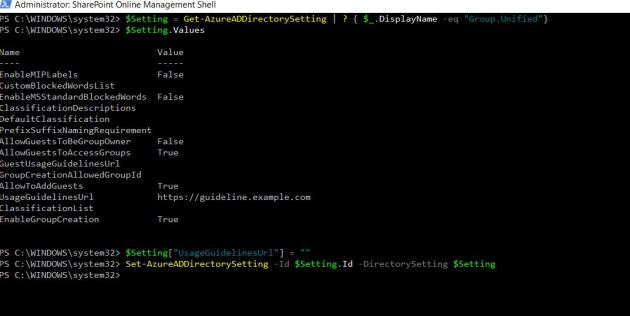
Azure AD Directory Settings 2

Now the group settings have been created for this Azure AD organization, we can enable the feature through “EnableMIPLabels”. In the following picture we can see that we have Enabled MIP Labels to true.
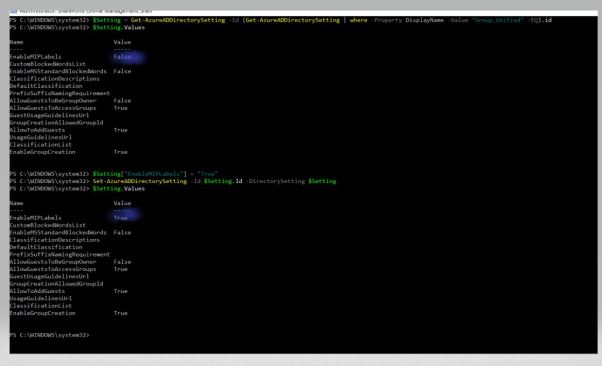
Enable MIP Labels

After enabling mip labels, if we go to Azure and try to create new Office 365 Group; now we will see a new field “Sensitivity label” under Membership type.  This is almost instantaneous but to have this to show up in SharePoint it might take around an hour or so as SPO has a caching refresh logic. Also it could take up to 24 hours for your published labels to show up in the Sensitivity label dropdown .
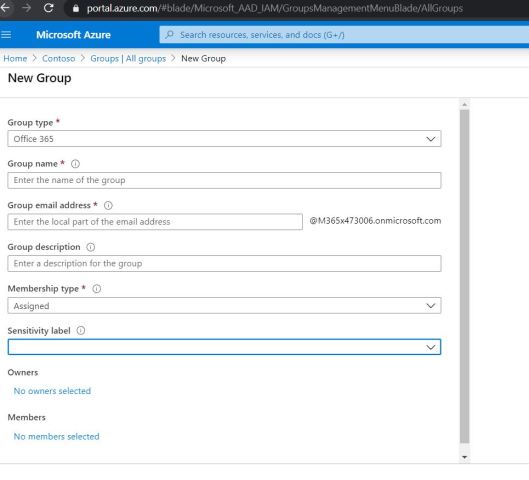
Create New Office 365 Group in Azure After

If you want to Apply Sensitivity Labels through SPO Admin center – Select the site and see in the site and go to Policies, there we can see the section for Sensitivity and click Edit under it.
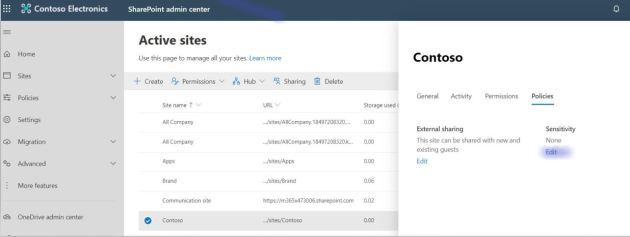
spo admin policies

Here you can pick the Label that you want apply to the site  (These are the Sensitivity Labels created & published in the compliance center).
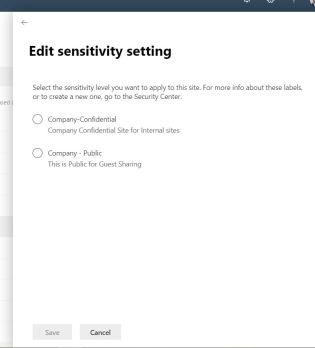
Apply Sensitivity Labels

After applying the label to the site “contoso” – It changes the public group to private group and  the label name “Company Confidentail” would show up.
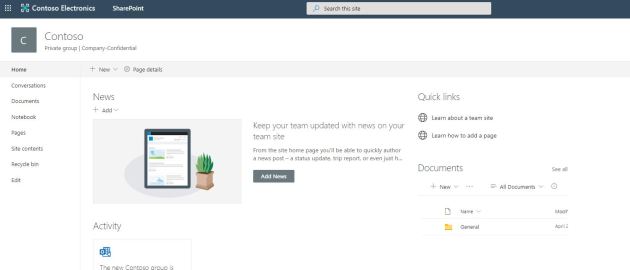
Public to Private Group


To change the label of the site as a Site owner go the settings – site information
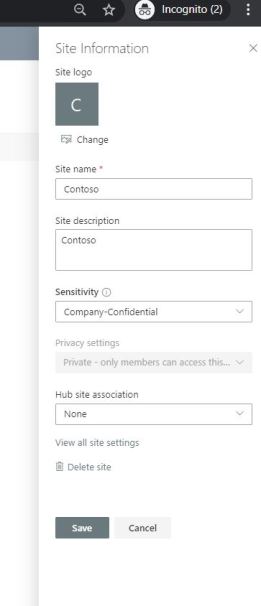
Site Information

Now we have the label feature enabled and few labels published, so the creating dialog for provisioning Sites/Groups/Teams have the sensitivity option shows up. In Teams if we pick the label company confidential it will only enable the relevant options that comply with the label.

Finally now if we want to go back and apply these labels for several other existing sites, we can do through the PowerShell
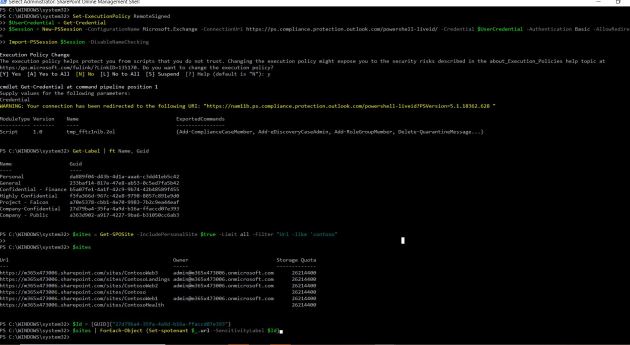
PS for Apply Labels

PowerShell Screen shot

If you have a requirement to set “Sensitivity” label for
many site-collections using PowerShell is the most optimized way.

Download the latest SPO admin PowerShell

//For connecting to SPO
connect-sposervice

//Office 365 Security & Compliance Center PowerShell allows you to manage your Office 365 Security & Compliance

Set-ExecutionPolicy RemoteSigned
$UserCredential = Get-Credential
$Session = New-PSSession -ConfigurationName Microsoft.Exchange -ConnectionUri https://ps.compliance.protection.outlook.com/powershell-liveid/ -Credential $UserCredential -Authentication Basic -AllowRedirection
Import-PSSession $Session -DisableNameChecking

//Get the list of Sites that you want to apply Labels
$sites = Get-SPOSite -IncludePersonalSite $true -Limit all -Filter “Url -like ‘contoso”
//That’s the guid of my company confidential label
Get-Label | ft Name, Guid
$Id = [GUID](“27d79ba4-35fa-4a9d-b16a-ffaccd07e393”)

//Apply this sensitivity labels for sites
$sites | ForEach-Object {Set-spotenant $_.url -SensitivityLabel $Id}
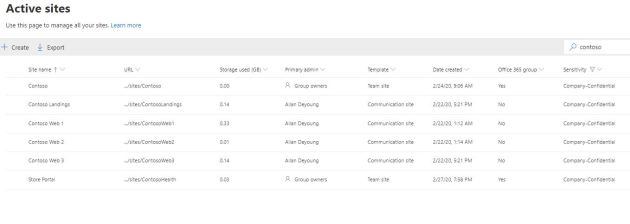
Applied Labels

We can extend this enabling sensitivity files for office files through the (link)

In the near future we may have few more options available for these labels, so I think it would be worth investing and adopting this in your tenant.

Note: I would really thankful for Sanjoyan Mustafi for his timely response on questions and his snippet on Powershell to apply Sensitivity labels for  many sites.
Attachments on “Power App Portals” for Anonymous Users

Power Apps makers can create external-facing websites that allow users outside their organizations to sign in with a wide variety of identities, create and view data in Common Data Service, or even browse content anonymously through “Power App Portals” .

Recently I had a question from a colleague, to enable attachments for Anonymous users through Portals , then I thought it is worth doing a blog to help anybody looking. With MS Forms we can do attachments through file upload but it doesn’t work for Anonymous users.

I am going create a trial environment for creating Power App Portal,  and an Entity in CDS to store data for the App, will go on configuration of  Form and permissions to have the  attachment to show up on Portal for the Anonymous user.

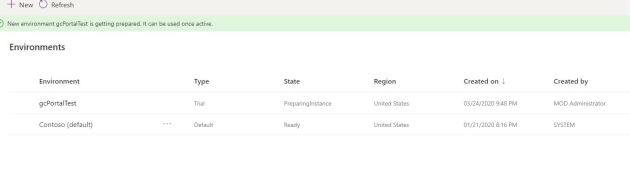
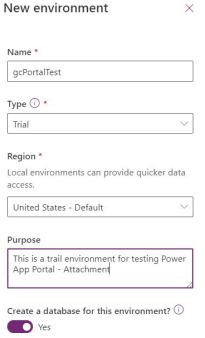
Creating a Trial Environment  (https://admin.powerplatform.microsoft.com/environments)-

Trial Environment

Then we can see all the Environments in our Tenant-

All Environments

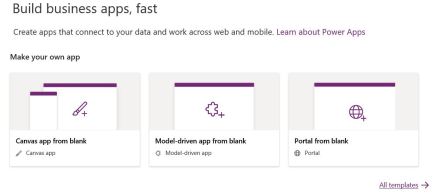
To Create Portal App we have to switch to the Trial environment that just created, after that go to Apps and should pick the “Portal from blank” option to create new Portal App.

Portal from Blank

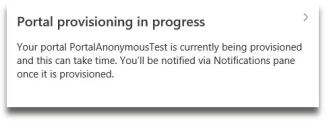
We can create only one Portal App for an Environment, and usually it takes few minutes to finish creating.

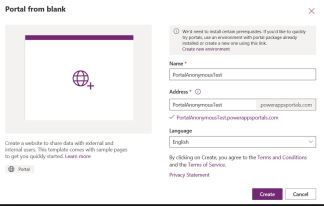
Create Portal  Provisioning In progress

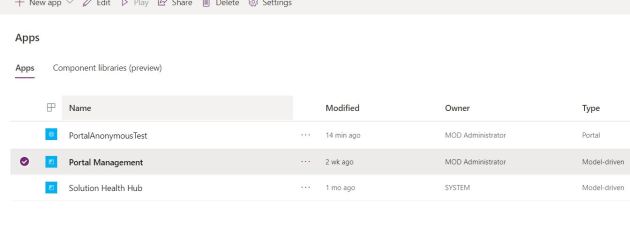
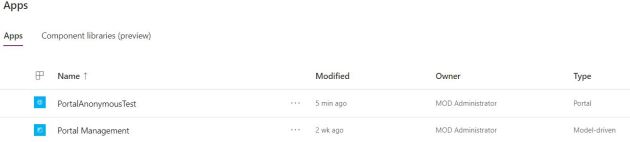
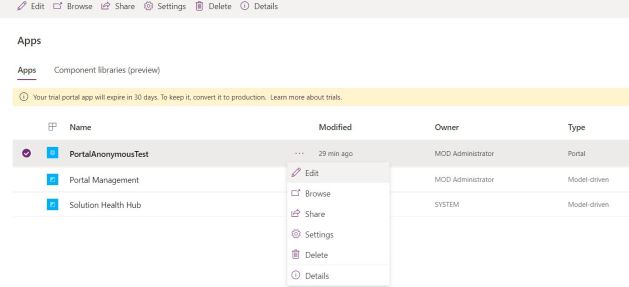
After Provisioning you can see Portal App in this scenario “PortalAnonymousTest” .

The Portal Management app allows you perform advanced configuration actions on your portal. The app is available after the database on Common Data Service is created successfully.

Through the Portal Management we can configure our Portal App.

Click on Portal Management

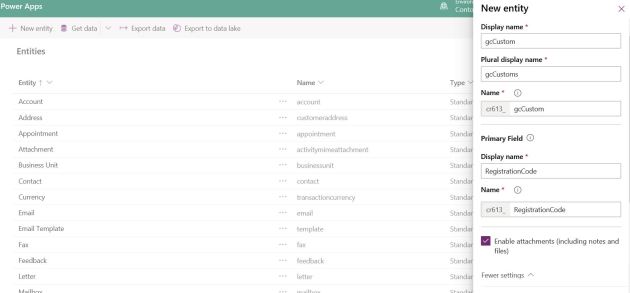
Before configuring further we create a Custom Entity “gcCustom” that will be used in the Portal App to store user data.

For Attachments on Portal to work, we need to make sure check the “Enable attachments” option on the New entity screen.

Create New Entity

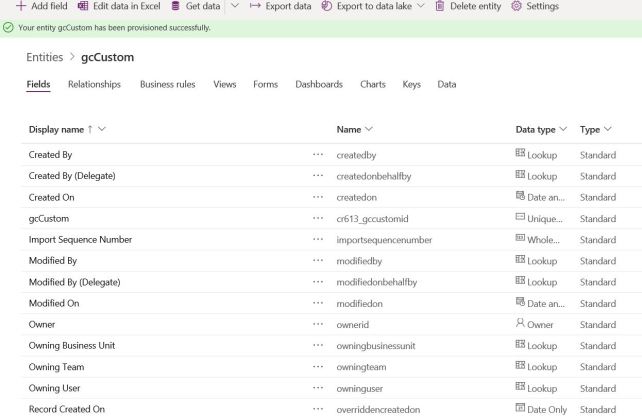
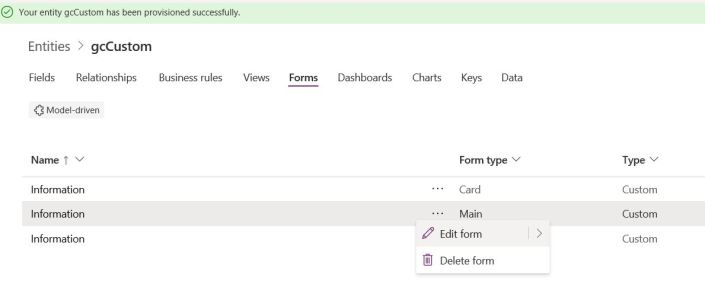
Entity Provisioned

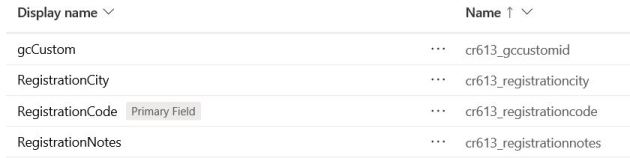
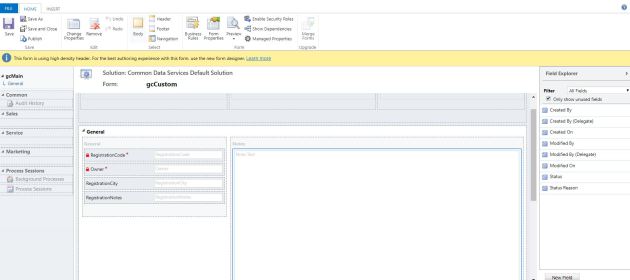
Just to have some  meaningful data created few Custom Fields in  “gcCustom”

Custom Fields

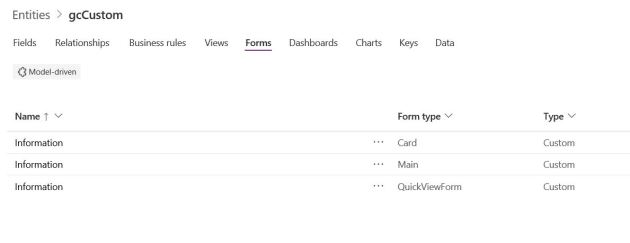
To the use the Model driven form of this Entity in Portal App, either we can create new form or customize the existing form for this Entity. In this case I wanted to use the out of the box Main form.

Entity Forms

Edit the Form

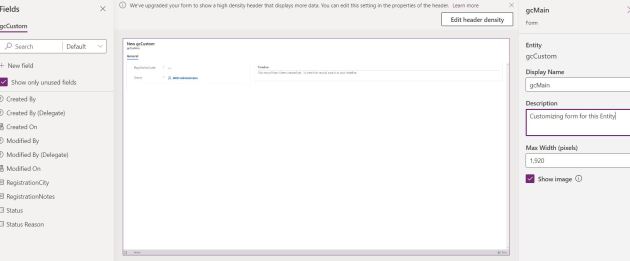
Edit the form and we add custom fields to the form, just changed name of Form to “gcMain”

Edit view of the Form

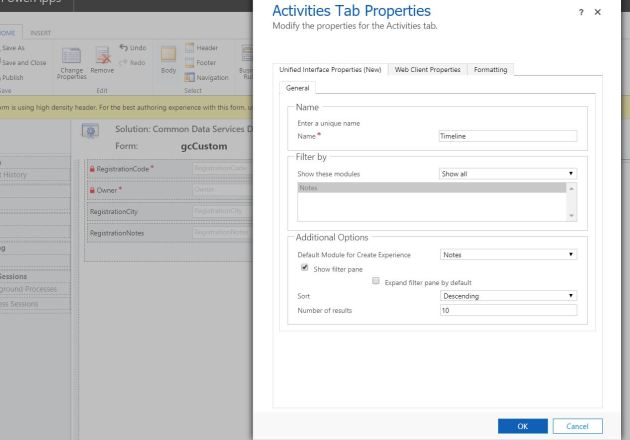
It is a good idea to check the Notes Properties under “Time line” section by switching to classic view of the Form.

Classic View of Form

Select the Notes Control and Click “Change Properties” from the tool bar, just to make sure we have “Notes” selected in Additional Options.

If you created a custom form and added the notes section to it, be sure to select Notes as the default tab you want to be visible.

Changing Properties of Notes

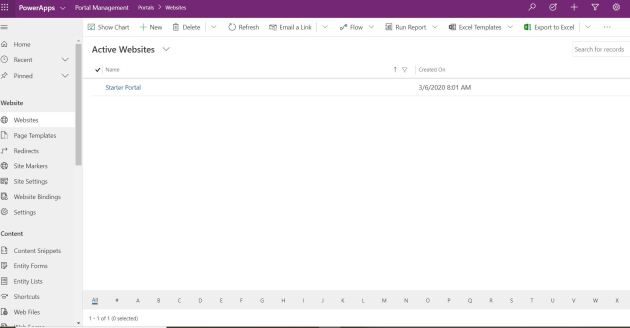
With this now we can go back to the Portal App Configuration and Click on Portal Management for configuring Entity Form and additional options.

Portal View

When you click on the Portal Management you will be opening below-

portal Management

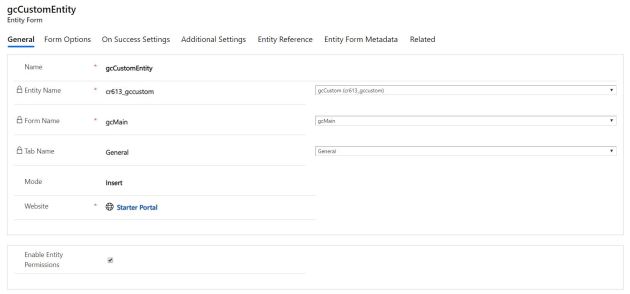
Go to “Entity Forms” and Create one for the Entity “gcCustom” and use the re-named form “gcMain” (On CDS – Entity). As we are allowing only Insert and upload attachment pick mode as “Insert”

Make sure  check “Enable Entity Permissions”

Explicit Entity Permissions are required for any notes to appear on the portal. For read and edit, the Read and Write privileges must be granted. For create, two permissions must exist: a permission with the Create and Append privileges must be granted for the note (annotation) entity, the second permission must be assigned to the entity type the note is being attached to with the Append To privilege granted.

Entity form In Portal

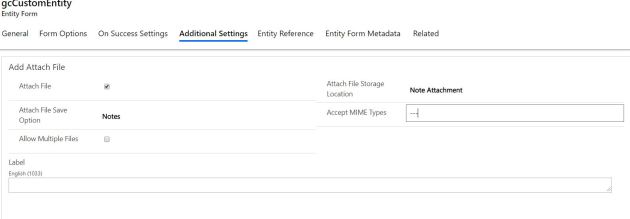
Next go to “Additional Settings” and scroll down below to “Add Attach File” section to check all the following options.

Entity Form Attachment Additonal Sections

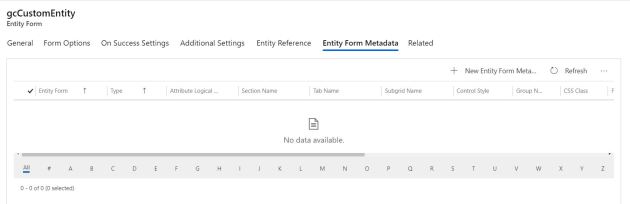
Next create “New Entity Form Metadata”

New Entity Form Metadata

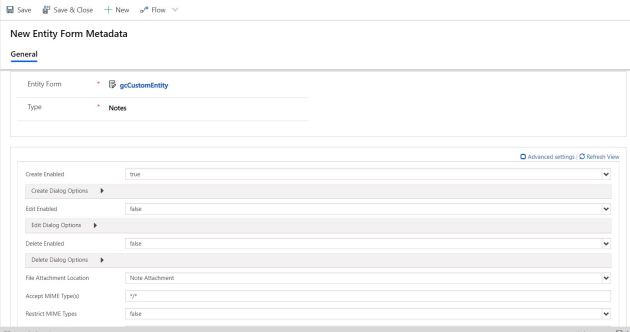
In this step create Entity Form Metadata with Type “Notes” and minimum Create Enabled “True” and in Create Dialog Options have Display Attach file (Enables a file upload field in the Add Note dialog box, allowing a user to attach a file to a note.) as “true”.

New Entity Form Dialog

Now we have Entity Form configuration ready with all options,  the Note control will be rendered by using the appropriate options enabled on the portal.

Now we need to make sure that Anonymous user role has appropriate permission.

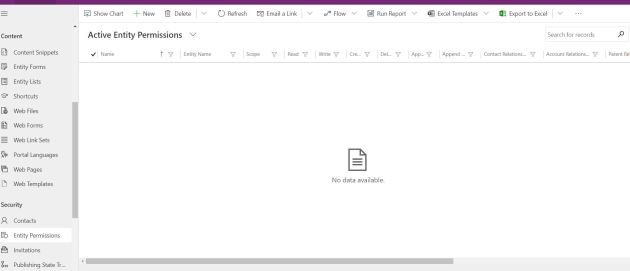
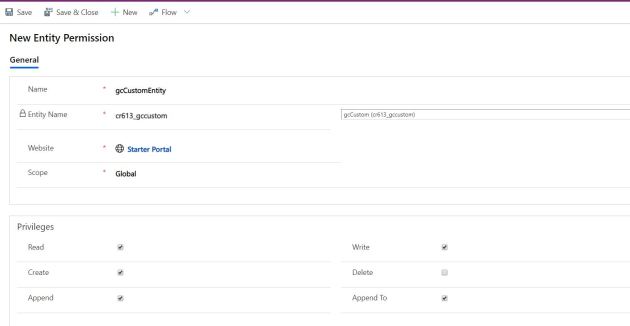
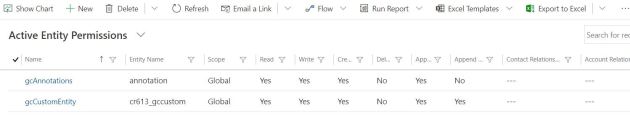
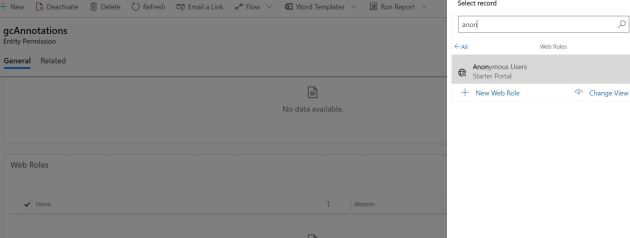
Go to Security –  Entity Permissions on the Portal Configuration and create Entity permissions on custom Entity “gcCustom” and also Annotations (Notes) Entity that comes out of the box.

Go to Entity Permissions

gcEntity Permissions

Activity Entity Permissions

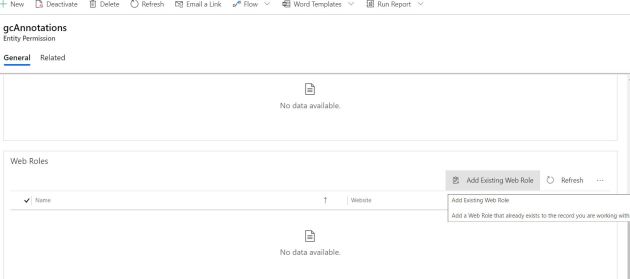
Add Existing Web Role – “Anonymous Users”to both the Entity Permissions created above.

Add roles to for Entities

Add Anonymous Permissions

This will completes the minimum required configuration on the Portal Management.

Go to back to App Section and click on Edit the Portal App

Edit the PowerApp Portal

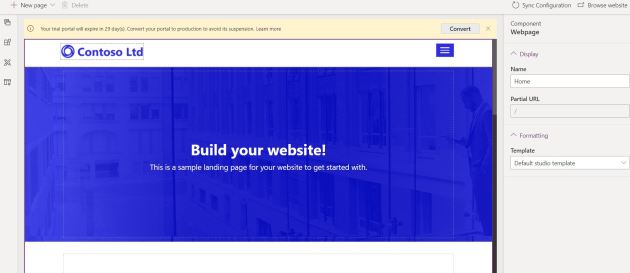
This will open Portal App in Edit Mode and to make easy leave the home as is and create new Page to add the new form.

Portal Home Page

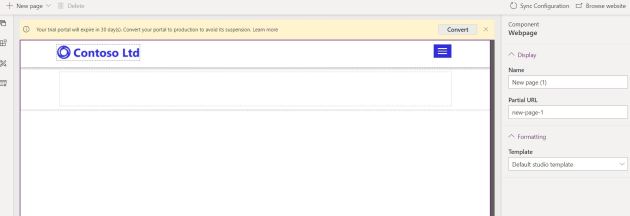
Created new Page to host the Model driven form

Create New Page to Add Form

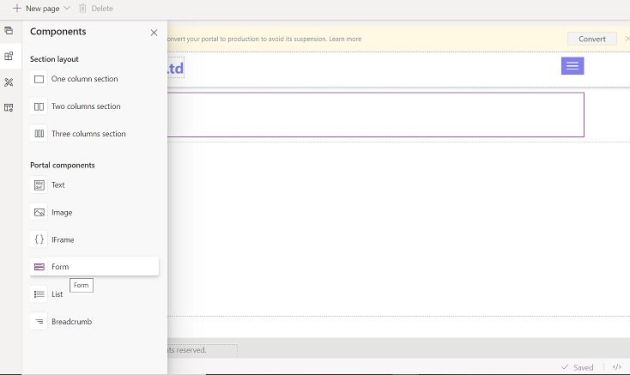
Add form Control on to the newly created Page

Insert form

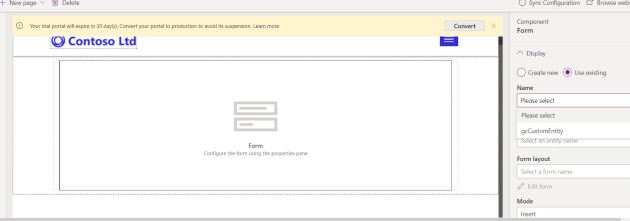
We can use the existing form that created from the Portal Configuration

Use existing Form

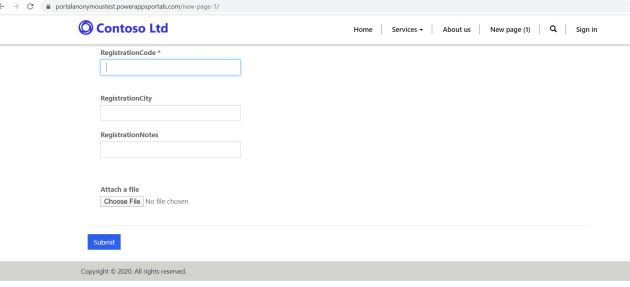
if we click the “Browse Website” this page will be redirected on Web browser – (Some times the configuration change will get updated on browsing, if you will the cache is not clearing or changes not propagating click on Sys Configuration)

Portal New Page

Portal Attachments

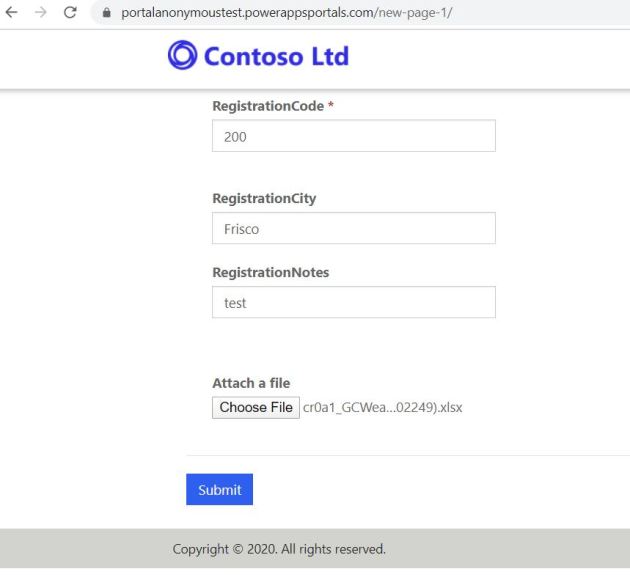
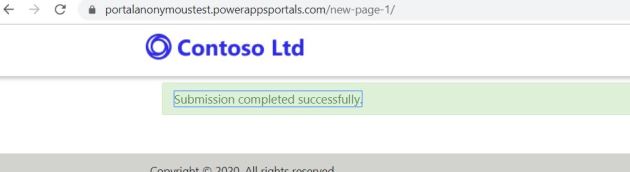
Click “Submit” you see the record and attachment saved successfully.

succesfuly save

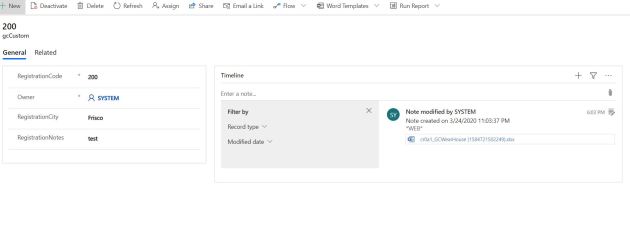
Finally if you want to see if the record saved you can go the CDS – Entity (gcCustom) – Data

View in CDS Data view

The above steps will help you to create a Power App Portal for Anonymous users to upload attachments.

PS  – I would like to give credit to Yogesh Gupt for few links and tips.

Run the Item level work-flow on Multiple Items based on a Status Column

$site = Get-SPWeb “http://xyz”
$web = Get-SPWeb “http://xyz/web”

$list = “ListName”;
$list = $web.Lists[$list];

$wfToStart= “WF_Name”

#Workflow Manager
$WorkflowManager=$site.WorkFlowManager
$association=$list.WorkFlowAssociations | where {$_.Name -eq $wfToStart}
$association.AllowAsyncManualStart = $true
$association.AllowManual = $true

foreach ($item in $list.Items) {
if ($item[“Status”] -eq “Complete”) {

$data=$association.AssociationData
$wf=$WorkflowManager.StartWorkFlow($item,$association,$data)
Write-Output “$wftoStart started on ” $item.Name

Write-Output $item.Name
}
}

$web.Dispose()
$site.Dispose()

Powershell to move Columns from List to the other List in SharePoint

$web = Get-SPWeb “http://fromsite”
$Toweb = Get-SPWeb “http://tostie”

$FromList = $Web.Lists[“FromList”]
$ToList = $ToWeb.Lists[“ToList”]

foreach ($spField in $FromList.Fields)
{
if( $Tolist.Fields.ContainsField($spField) -ne $true)
{
Write-Host $spField
$ToList.Fields.Add($spField)
$ToList.Update()
}
}

$web.dispose()
$To.dispose()

How to change the default text “SharePoint” that appears on the top left of the screen:

$app = Get-SPWebApplication -Identity http://WebApp
$app.SuiteBarBrandingElementHtml = “

OurCaliber Portal


$app.Update()

Replicate Directory Change Permission” (without write permission) for User Profile Sync

The Synchronization Service Account that is used to connect in the User Profile Synchronization (UPS) required “Replicate Directory Change Permission”, all the Domain’s that we are synchronizing need to Delegate this Permission

for the Service Account. This permission will allow the service account to query the changes in the directory (AD DS) and with this permission nothing can be updated in the AD.

UPS Service uses the DirSync control an LDAP extension that enables to search Active Directory partition for objects that have changed, when UPS perform a DirSync search it creates a cookie that identifies the directory state at the time

Of an earlier DirSync query. With the Frist search the program creates an empty cookie and AD returns all objects that satisfy the query. AD also returns an updated cookie that can be passed to the next search to obtain  changes that are made since the first search. For every Synchronization this process repeats.

DirSync searches are performed against whole AD partition, and returns all the changes that are made to an AD object regardless of the permission that are set on the object. It will also return deleted objects.

However to run the DirSync control the service account that is running should have Replicating Directory Changes permission andagain there is no work around for avoiding this permission to have User Profile Synchronization to Sync.